Yananyaa Secure Exam Portal: Run Online Exams with Proctoring
2026-09-18 · By Haileyesus Ingidu
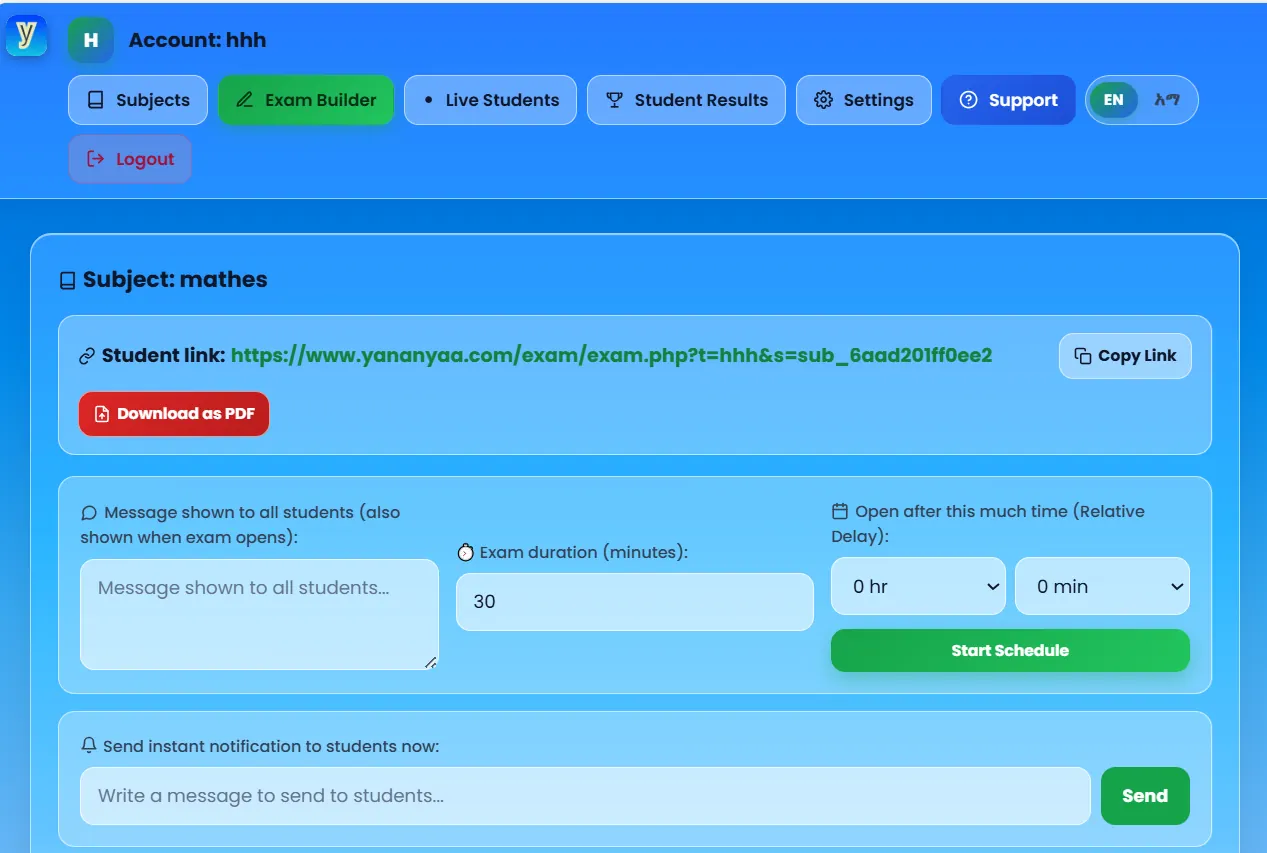
Running an exam online raises three practical questions for any teacher: how do I set it up quickly, how do I keep it fair, and how do I collect the results? The Yananyaa Secure Exam Portal is built to answer all three from one Teacher Dashboard. This article explains its main features and offers some advice for running online tests with confidence.
Set up exams quickly
Two features save the most time before the exam even begins:
- Automated scheduling: you can set the exam to open automatically after a chosen amount of time, so you do not have to start it by hand.
- Bulk question import: instead of typing questions one by one, paste a question with its four choices and the system detects the pattern and adds them all at once.
Together, these turn a long preparation task into a short one, especially for question banks that you already have in a document.
Keep the exam fair with proctoring
The portal forces full-screen mode during the test. If a student switches tabs, minimises the window or leaves full-screen, the action counts as a violation and can trigger an automatic submission. Right-click and copy/paste are also disabled, which reduces the chance of students copying questions to search for answers.
The page is also designed to resist in-browser AI assistants. The question text is intentionally not machine-readable in the raw page source, which makes it harder for an assistant to read and answer the questions automatically. As with any anti-cheating tool, this is a deterrent rather than a guarantee, so it works best alongside well-written questions and clear rules.
Monitor students in real time
- Live status view: see which students have opened the link, who is actively working and who has already submitted.
- Instant notifications: push a short pop-up message to every student's screen, such as "5 minutes left".
- Live time extension: add extra minutes to a running exam without resetting it or affecting anyone's current progress.
These tools are especially useful when something goes wrong, such as a power cut or a confusing question, because you can respond immediately instead of waiting until the exam is over.
Simple for students
Students do not need complicated accounts. They open the link and enter their full name to join. That keeps the barrier low and lets you focus class time on the test itself instead of on login problems.
Results, printing and offline use
- Excel export: download all student results as an Excel file for grading and analysis.
- PDF with answer key: download the whole exam and its answer key as a printable PDF, useful for paper-based or offline testing.
- Installable app (PWA): add the dashboard to the home screen of a phone or computer so it opens like a normal full-screen app, without an app store.
Best practices for online exams
- Explain the rules beforehand. Tell students that switching tabs or leaving full-screen counts as a violation and may submit the exam.
- Run a short practice test. A five-question trial exposes device and connection problems before the real exam.
- Plan for accidents. A notification popup or a dropped connection can look like a violation. Decide in advance how you will handle genuine mistakes.
- Write clear questions. Ask for understanding, not just memorised facts, because that is harder to copy.
- Keep the time realistic. Use the live extension only for real problems, not as a routine.
Frequently asked questions
Can I use the portal on a phone?
The dashboard can be installed on a phone or computer as an app-style shortcut.
Do students need an account?
No. They join by entering their full name.
Can I export the results?
Yes. Results can be downloaded as an Excel file, and the exam with its answer key can be exported to PDF.
Does the portal stop AI tools completely?
It makes automated reading of the questions harder, but no online system can promise complete prevention. Good exam design still matters.
Conclusion
The Yananyaa Secure Exam Portal combines scheduling, proctoring, live monitoring and easy exports in one dashboard. For schools, training centres and teachers who need dependable online testing, explore the Secure Exam Portal and run a practice test today.
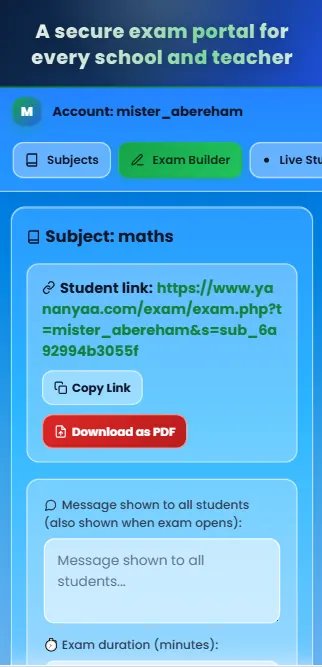
Ready to try Secure Exam Portal?
A secure online exam portal for schools and teachers: create exams, set time limits and review results in one place.
Open Secure Exam Portal now → (opens in a new tab)